Best app blockers for iPhone, and what each one shows you when you open a blocked app
An app blocker for iPhone stops you from opening the apps you pick. Most do it with a message, a pause or a limit. Then you're left with an empty moment, and your thumb goes back to the phone. Snub Phone gives that moment something to do, with no extra device and a way out if something urgent comes up.
Here are seven, side by side: Snub Phone, Screen Time (built into iPhone), Opal, one sec, Brick, ScreenZen and BePresent. Snub Phone is ours: this page is written by its maker. Everything about the other six comes from their makers' own pages, and where a maker doesn't say, the table says “Not stated”.
Snub Phone
Snub Phone gives the empty moment something to do: open a locked app, and you get an idea for time without your phone instead, like this one.
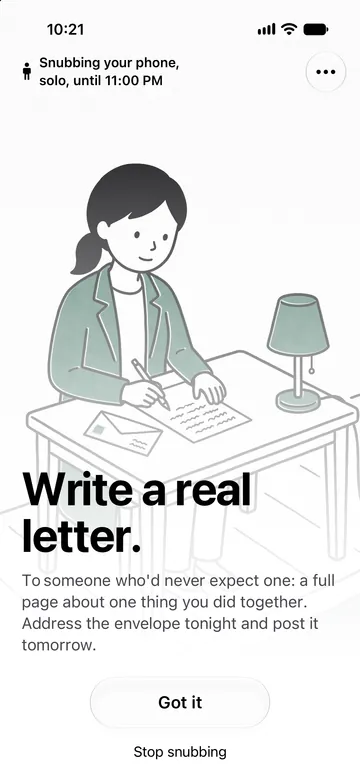
- The apps you choose stay locked for the time you set. Everything else stays open.
- Ideas for the two of you, with your kids or on your own.
- No extra device: it all happens on your phone.
- If something urgent comes up, you can unlock your apps early. You type a reason and wait 60 seconds.
Seven app blockers, side by side
| App | How it stops you | What you see when you open a blocked app | Extra device |
|---|---|---|---|
| Snub Phone | Locks the apps you choose for the time you set. | An idea for time without your phone. | None |
| Screen Time (built into iPhone) | Time Allowances: how long you can use categories of apps each day. A Screen Time Schedule: when during the day you can use them. | Not stated | None |
| Opal | Rules: a Session blocks apps right away, a Schedule at set hours, a Time Limit after a daily allowance, an Open Limit after a number of opens. | A Block Screen you pick: “This app is blocked by Opal”, pop culture references, haiku, wisdom from great minds or ideas for things to do off your phone. | None |
| one sec | A pause before an app you chose opens, at the times you set. It can also block apps completely during a block session or on a schedule. | An interruption you pick: a breathing exercise, a small task, a reminder of a healthy alternative, or yourself in a mirror. Then you decide. | None |
| Brick | You tap your phone on the Brick to block the apps you chose, and tap it again to unblock them. A schedule can block them too. | Not stated | Yes: the Brick, a physical device you tap your phone on |
| ScreenZen | Daily limits or schedules for the apps and websites you choose, and a lock mode against common loopholes. | Not stated | None. halo, a companion device for a room, is a separate product. |
| BePresent | Blocks distracting apps, with points, badges, quests, a leaderboard and friends and family to keep you going. | Not stated | None |
Screen Time
Screen Time is in the Settings app on iPhone. With Time Allowances you set how long you can use categories of apps each day, such as Entertainment, Games or Social Media, and with a Screen Time Schedule when during the day you can use them. Apps and people you add to Always Allowed stay available at all times.
Its maker's site: support.apple.com/guide/iphone/set-up-screen-time-for-yourself-iphbfa595995/ios
Opal
Opal blocks apps with Rules: a Session right away, a Schedule at set hours on set days, a Time Limit after a daily allowance and an Open Limit after a number of opens a day. A blocked app shows a Block Screen you pick, from “This app is blocked by Opal” to haiku or ideas for things to do off your phone. To unblock an app, you wait in a Waiting Room.
Worth knowing: In Hard Mode you can't unblock apps, cancel or bypass, and if something urgent comes up, the only way out early is the Emergency Pass, which works once a week. Source: help.opalapp.com/article/how-to-use-sessions
Its maker's site: opalapp.com
one sec
one sec puts an interruption between you and the apps you choose: a breathing exercise, a small task such as a math problem or rotating your phone, a reminder of a healthy alternative such as reading a book, or a look at yourself in a mirror. You set when the interruptions appear, and you can also block apps completely during a block session or on a schedule.
Worth knowing: After the interruption, the app opens if you still want it. Source: one-sec.app/faq
Its maker's site: one-sec.app
Brick
Brick is a physical device. You choose the apps to block in the Brick app, tap your phone on the Brick, and they stay blocked until you tap it again. You can also block them on a schedule, or start a block from the app without the device.
Worth knowing: You need the Brick within reach to unblock, and if you lose it, the app has five Emergency Unbricks, with more if you email Brick. Source: getbrick.com/pages/faq
Its maker's site: getbrick.com
ScreenZen
ScreenZen limits or blocks the apps and websites you choose, with daily limits or schedules, and a lock mode makes it harder to get around them. Its maker also makes halo, a companion device you place in a room.
Its maker's site: screenzen.co
BePresent
BePresent blocks distracting apps and turns staying off your phone into a game, with points, badges, quests, a leaderboard and friends and family. It also notifies you when you've been scrolling without noticing.
Its maker's site: bepresentapp.com
Looking for a Brick alternative without the device
Snub Phone is one: your apps lock on the phone itself, so there is nothing to carry or tap, and when you open one, you get an idea instead. With Brick, getting back into your apps takes the device: you tap your phone on it again. Without a device, the way back in is on the phone, and each of these apps puts a step in your way:
- Snub Phone: an idea instead of the app, and to unlock early, a reason you type and 60 seconds of waiting.
- Opal: a Waiting Room before you unblock; in Hard Mode, only the weekly Emergency Pass gets you out early.
- one sec: an interruption, such as a breathing exercise or a small task, before the app opens.
- ScreenZen: daily limits or schedules, and a lock mode against getting around them.
How to block an app with Screen Time
Screen Time is built into iPhone, in the Settings app. Its Time Allowances set how long you can use the apps in a category each day, such as Entertainment, Games or Social Media. In Apple's iPhone User Guide, you set one up like this:
- Go to the Settings app on your iPhone.
- Tap Screen Time, then tap Time Allowances.
- To add a category, tap Manage Categories, tap the Add button, then select a category.
- Under Time Allowances, tap the category, then drag the slider left or right to set its time.
You can use the apps in a category until they reach its allowance or the daily total. To choose when during the day they are available, tap Screen Time, tap Screen Time Schedule, turn on Schedule, then tap Add Schedule and the days it covers.
If your iPhone shows other names, Apple's guide has the steps for yours.
Source: support.apple.com/guide/iphone/set-schedules-and-time-allowances-iphb0c7313c9/ios
How to block TikTok or Instagram
With Snub Phone, pick TikTok and Instagram among the apps you lock when you set it up. For the time you set, opening either one shows you an idea for time without your phone instead. Everything else stays open.
With Screen Time, Time Allowances are set for categories of apps, so TikTok and Instagram count toward the allowance of the category each one is in. To see the apps in a category, tap Manage Categories in Time Allowances, then tap the category.